Privacy and security
Sextant is built so that your calls stay on your Mac. This page lists exactly what stays there, when the app uses the network, and what an optional transcription provider would receive.
In short
By default
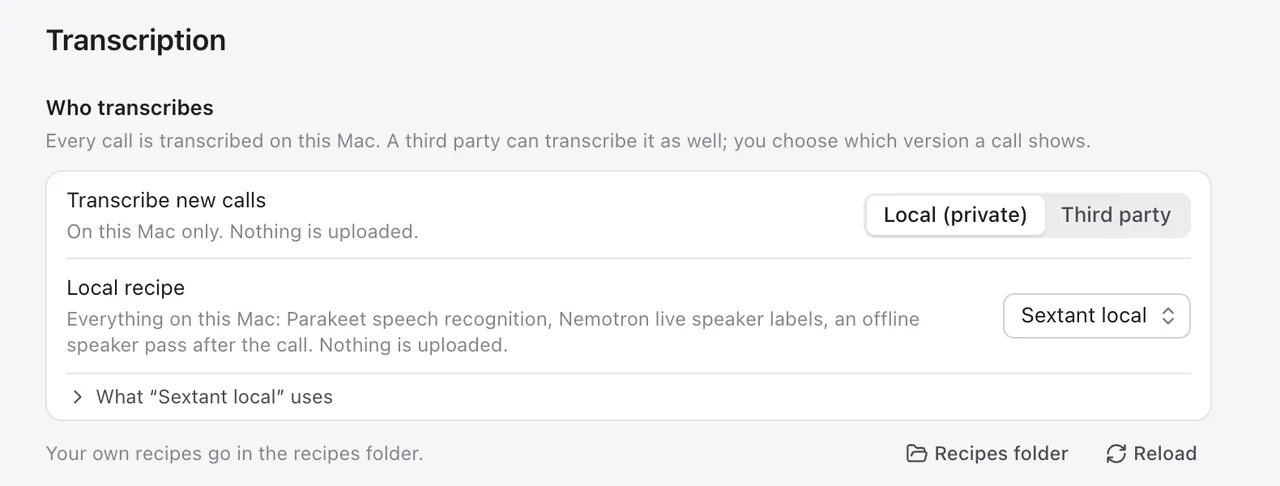
Recording, transcription, speaker recognition, highlights, summaries and search all run on your Mac. Nothing about your calls is sent anywhere.
One exception, off unless you choose it
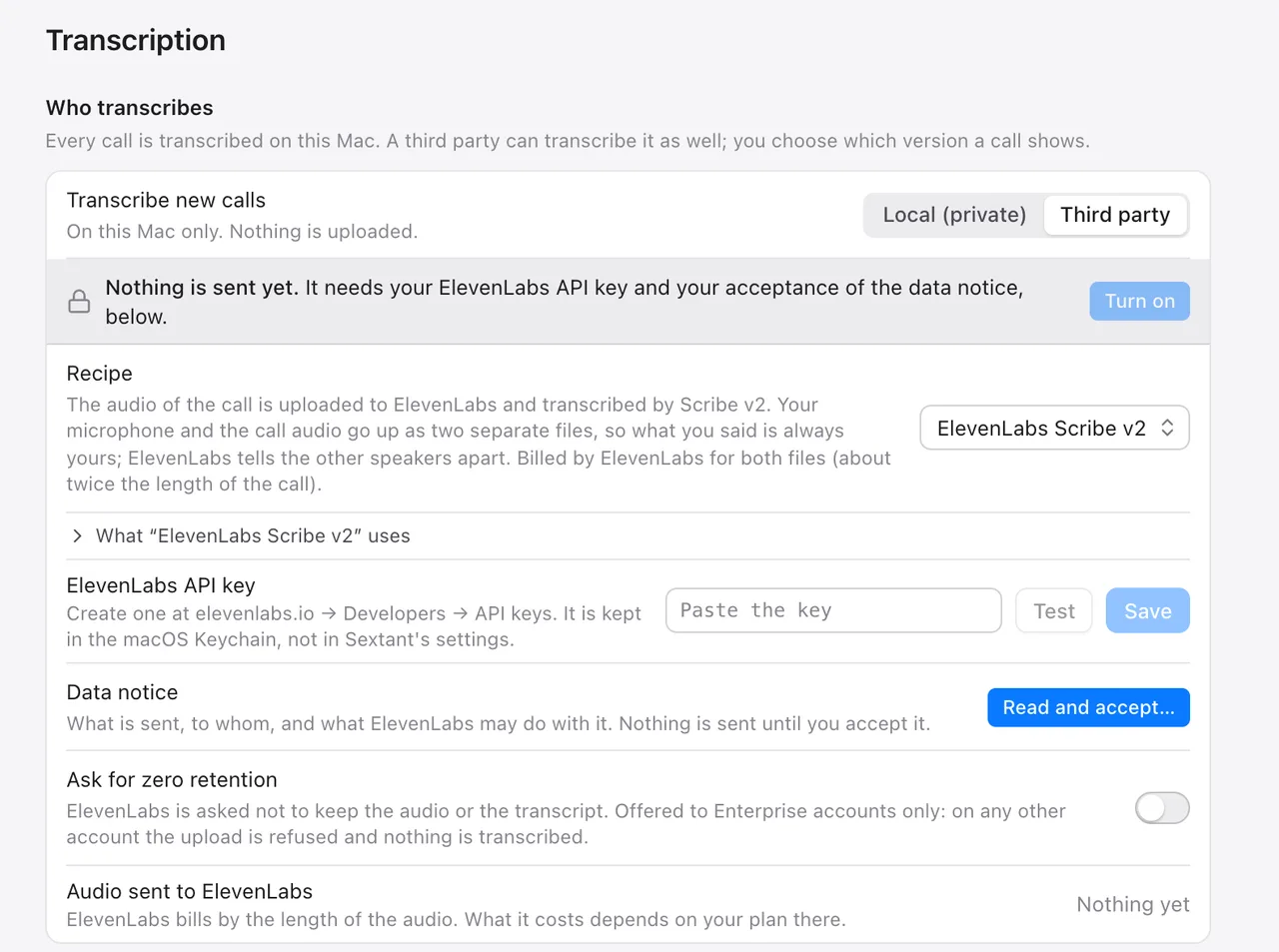
Third-party transcription sends the audio of your calls to ElevenLabs, with your own API key, after you accept its data notice.
Never
No telemetry, no analytics, no crash reports sent home, no account. No bot joins your calls.
What stays on your Mac
Everything Sextant records or makes is stored in ~/Library/Application Support/Sextant/ on your Mac:
- The recordings: your microphone and the call audio as separate audio files, and the video of the call window.
- Transcripts, including every version you made and the words each version removed.
- The people you named and their voice profiles, used to recognise them in later calls.
- Highlights and their pictures, summaries, the notes you typed and the search index.
- Your settings, summary templates and vocabulary.
Recordings are kept until you delete them, or until a cleanup rule you set removes their video or audio. Exported notes go only to the folder you choose.
The speech models run on your Mac’s Neural Engine and the language model runs on your Mac’s GPU. Inside the app, the picture and sound are played from a server that listens only on your own Mac (127.0.0.1), with no outside connection.
When the app uses the network
Only in these cases, and each one starts with something you do:
| What | When | Where to | What is sent |
|---|---|---|---|
| Model downloads | When you press Download in Setup or Settings | Hugging Face | Ordinary download requests; nothing about your calls |
| Optional Python helper (one extra local transcription recipe) | Only when you press Install | github.com, pypi.org, huggingface.co, openaipublic.azureedge.net and api.ngc.nvidia.com, and their download hosts | Ordinary download requests. Once installed, the helper runs without network access. |
| Third-party transcription | Only after you turn it on (below) | ElevenLabs | The audio of the calls you transcribe with it |
There is no other network traffic: no update checks, no telemetry and no crash reporting.
Third-party transcription
Some people want a second transcript from a cloud service for some calls. Sextant supports one provider, ElevenLabs (Scribe v2). It is off by default and stays off until you do all three of these:
- Store your own ElevenLabs API key. It is kept in the macOS Keychain, never in Sextant’s settings, files, logs or exports, and the app never shows it again.
- Read and accept the data notice, which says what is sent, to whom, and what ElevenLabs may keep.
- Switch “Transcribe new calls” to Third party.
All three are checked again before every upload. Turning it off, removing the key or withdrawing your acceptance cancels anything waiting and stops an upload in progress.
What ElevenLabs receives
- The audio of the call: your microphone and the call audio as two files (one file for an imported or in-person recording), after the call ends.
- The terms of your vocabulary, if you have added any, so their recognizer spells them right.
What it never receives
- Video, screenshots or highlight pictures.
- Your notes, summaries, highlights or call titles.
- The names of the people in your calls, or anything else from your library.
Good to know
- The transcript made on your Mac is always made and always kept. Summaries, highlights and search keep running on your Mac.
- Older calls are uploaded only when you ask, after a confirmation that says how much audio goes up.
- You can ask ElevenLabs not to keep the audio or the transcript (zero retention). If your ElevenLabs account cannot do that, the upload is refused rather than sent without it.
- Sextant only connects to ElevenLabs’ own addresses over HTTPS, and does not follow redirects elsewhere.
- ElevenLabs bills you directly, under its own terms and privacy policy.
Recording other people
Sextant records only after you click Record, or for apps you have set to record always, in which case it shows a notice and a red menu bar icon. It does not tell the other people on the call by itself. Tell the call copies a short message for you to paste in the call chat and marks the call as announced.
Whether you need the other people’s consent depends on where you and they are. Sextant is not legal advice: check the rules that apply to you.
Security
- Permissions. Sextant asks macOS for the microphone and for screen and system audio recording. It needs these to record calls; you can see and revoke them in System Settings.
- Not sandboxed. Recording another app’s sound and window is not possible inside the macOS App Sandbox, so Sextant will be distributed outside the Mac App Store, signed with a Developer ID and notarized by Apple.
- Your files are yours. Recordings are ordinary files in your user folder. Anyone with access to your Mac account can read them; FileVault protects them when the Mac is off.
This website
This site sets no cookies, has no analytics or trackers, and loads nothing from other servers: its fonts are your system’s, its images are served from this site. A test in its build fails if any page refers to another server for something it loads.
When Sextant goes on sale, the Buy button will send the plan you chose to PressureLabs’ licence server, which passes you on to a checkout page run by a payment provider; the provider will have its own privacy policy. The privacy policy (a draft) will name it.